Avenza Maps lets you take Dirty Freehub routes offline so you can navigate with confidence, even when you’re in an area with zero cell service. On this page, we’ll walk you through three simple steps:
- downloading the free Avenza app to your phone,
- opening a GravelPlex map using a special link,
- and adding a Dirty Freehub route layer so you can see our curated route right on top of the map.
Follow along, and you’ll be ready to ride with a clear, easy-to-read map in your pocket.
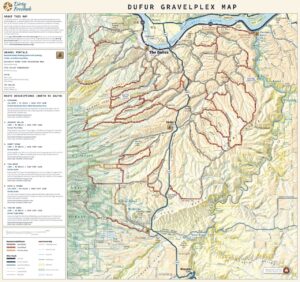
Avenza Maps is a mobile app that lets you use high-quality, georeferenced maps offline. Once a map is downloaded, your phone’s GPS shows your real-time location on that map—even without cell service. It’s perfect for backcountry riding, gravel exploration, and anywhere coverage is unreliable. With Avenza, you can load custom maps like the Dufur GravelPlex (learn more about GravelPlex here) and add route layers from Dirty Freehub to navigate confidently and stay oriented on every ride.
How to Download the Avenza App
A. On an iPhone (iOS)
- Open the App Store
Tap the App Store icon on your home screen. - Search for “Avenza Maps”
Tap the Search tab (magnifying glass), then type:
Avenza Maps - Select the Avenza Maps app
Look for “Avenza Maps: Offline Mapping” (publisher is Avenza Systems Inc.). - Download the app
Tap the Get button (or the cloud/download icon).
– If prompted, confirm with Face ID, Touch ID, or your Apple ID password. - Open Avenza Maps
Once it finishes installing, tap Open in the App Store, or find the Avenza Maps icon on your home screen and tap it.
B. On an Android Phone
- Open Google Play Store
Tap the Play Store icon on your home screen or app drawer. - Search for “Avenza Maps”
Tap the search bar at the top and type:
– Avenza Maps - Select the Avenza app
Choose “Avenza Maps: Offline Mapping” by Avenza Systems Inc. - Install the app
Tap Install and let the download and installation finish. - Open Avenza Maps
Tap Open in the Play Store, or find Avenza Maps in your apps and tap to launch it.
How to Load the Dufur GravelPlex Map Using a URL Link
On your phone,
- open this page (from the menu: How to | Navigate Routes | GravelPlex OR type this URL directly into your browser https://dirtyfreehub.org/avenza-gravelplex/)
- click on this link:
https://link.avenza.com/v9uP5 - Click download
- Processing will take 1 to 2 minutes, depending on your Internet connection speed
- Then, Open Map
Add a Dirty Freehub Route Layer
- In Avenza Maps, open the GravelPlex Map
- Tap the Layers icon (three stacked squares), bottom left
- Tap the “+” Add Layer button, top right
- Choose Import
- Choose From the Web
- Type a URL Address from the following list:
– GravelPlex.cc/fairbanks
– GravelPlex.cc/japanese-hollow
– GravelPlex.cc/summit-ridge
– GravelPlex.cc/tygh-ridge
– GravelPlex.cc/dufur-friend - Select Close
- Return to the GravelPlex map. The route will now display on the map.